

How to Design Your Custom Metal Business Cards
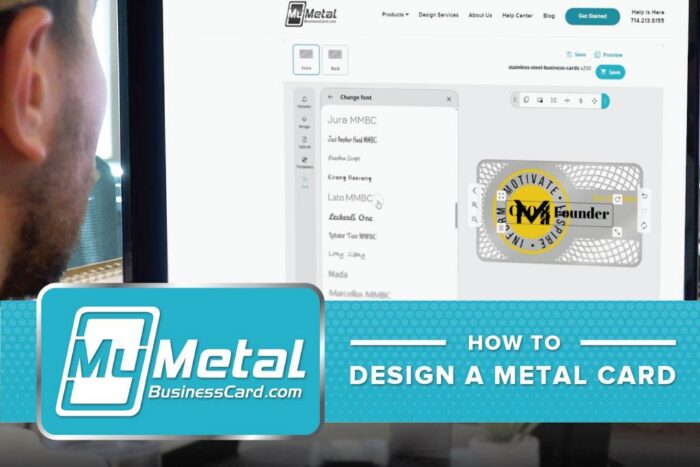
Designing a custom metal business card should feel like the start of something good.
You’re not just adding a name and phone number to a card. You’re choosing the finish, layout, artwork, color, cutouts, and details that shape how people remember you.
Our online designer makes the process simple. You can choose your metal card style, pick a finish, upload your logo, add text, start from a template, preview your design, and save it before placing your order.
And if you already have production-ready vector artwork, perfect. You can upload your files, and we’ll take it from there.
If you’d rather have our team help, you can add our card design service and work with an in-house designer to bring your card to life.
Here’s how to design your custom metal business card, step by step.
Step 1: Choose Your Metal Business Card Product
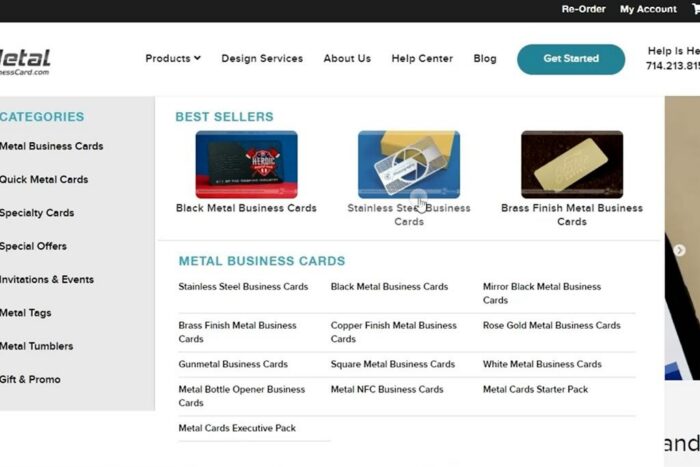
Start by choosing the type of metal card you want to create.
From the product menu, you can browse our metal business card options, including stainless steel, black metal, mirror black, brass finish, copper finish, rose gold, gunmetal, white metal, square cards, bottle opener cards, and NFC metal cards.
This is where your card starts to take shape.
- A stainless steel card feels clean and timeless.
- A black metal card feels bold and modern.
- A brass, copper, or rose gold card adds warmth and a premium edge.
- A gunmetal card keeps things sharp and understated.
- An NFC card adds a digital tap experience.
- A bottle opener card gives people another reason to keep it.
Choose the card style that best fits your brand and the kind of impression you want to make.
Step 2: Select Your Quantity
Once you’re on the product page, choose your card quantity.
This gives you a clear starting price before you begin customizing. If you need a custom quantity, you can select the option that works best for your order or reach out to our team for help.
After your quantity is set, you’re ready to start designing.
Step 3: Launch the Online Designer
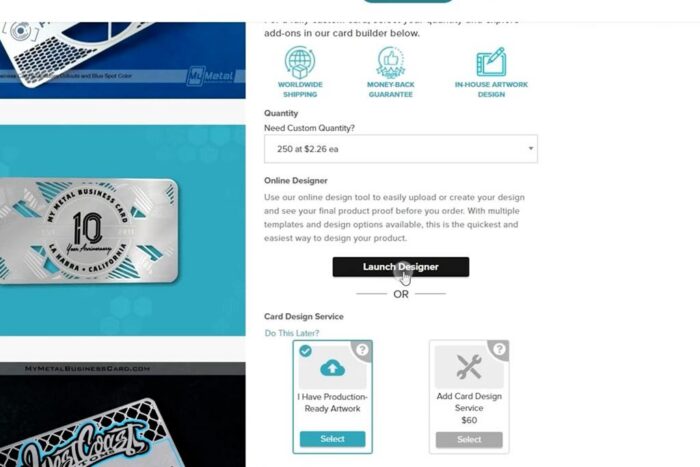
Next, click Launch Designer.
This opens the online design tool, where you can create or upload your design and preview the front and back of your card before you order.
Inside the designer, you’ll see tools for:
- Uploading artwork
- Choosing templates
- Adding text
- Editing design elements
- Switching between the front and back
- Previewing your card
- Saving your design
Think of the online designer as your workspace. You don’t need to have every detail perfect right away. It’s there to help you build the direction, arrange your elements, and show us how you want the finished card to look.
Step 4: Choose Your Finish
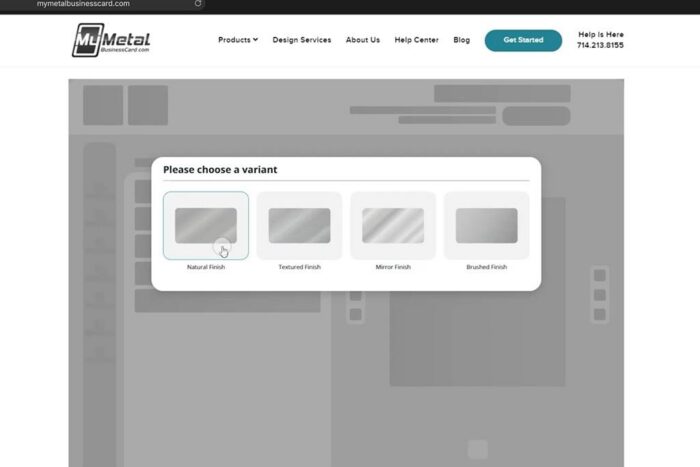
After launching the designer, you may be asked to choose a finish or variant for your card.
Depending on the product, you may see finish options such as natural, textured, mirror, or brushed.
Your finish matters because it affects the entire look of the card. It changes how light hits the surface, how your artwork contrasts, and how polished or subtle the finished card feels.
If your design is clean and minimal, a brushed or natural finish can work beautifully. If you want something with more shine and drama, a mirror finish may be the right move.
Choose the finish that feels closest to your brand.
One important note: choosing or previewing a finish in the designer helps show the direction of your card, but any upgraded finish or specialty option still needs to be selected on the main product page before you add your order to the cart.
That keeps your design and your order details aligned.
Step 5: Start With a Template or Build from Scratch
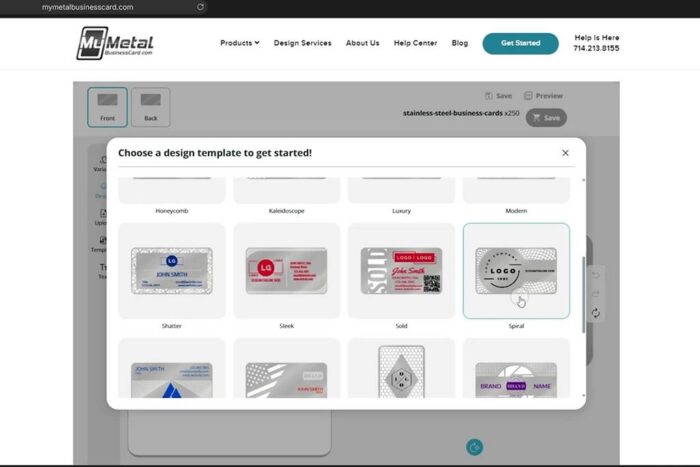
Inside the online designer, you can choose a design template to get started.
Templates are helpful if you want a starting layout instead of staring at a blank card. You can select a style, then customize it with your logo, colors, text, and details.
You can also build from scratch.
That’s a good option if you already know exactly where you want your logo, contact information, QR code, or design elements to go.
Either way, the goal is the same: create a layout that feels clean, intentional, and easy to read.
A custom metal card already has a presence. The design doesn’t need to shout.
Step 6: Upload Your Logo or Artwork
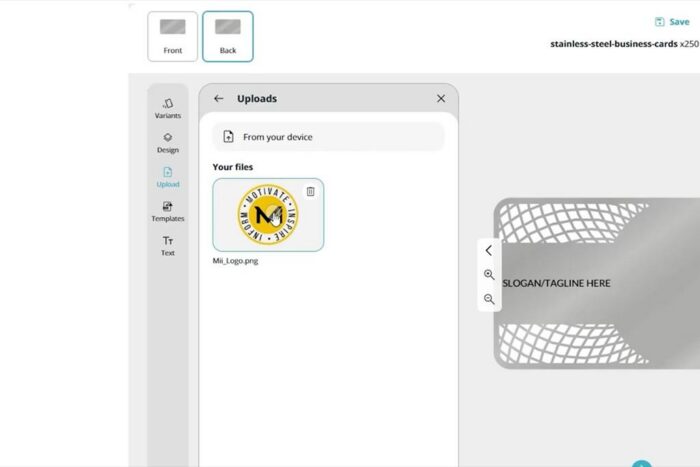
Next, upload your logo or artwork.
In the designer, click Upload, then choose your file from your device. Once uploaded, you can place it on the card, resize it, move it around, and adjust it as needed.
If you already have production-ready vector artwork, you can upload those files during the order process. Vector artwork is the best format for custom metal cards because it keeps logos, text, cut lines, and design details crisp for production.
Common accepted vector formats include:
- AI
- SVG
- EPS
You can also upload image files like PNG or JPG if you’re using the online designer to build a visual direction. If your file needs cleanup or adjustment before production, our team will guide you during the proofing process.
Step 7: Add and Edit Your Text
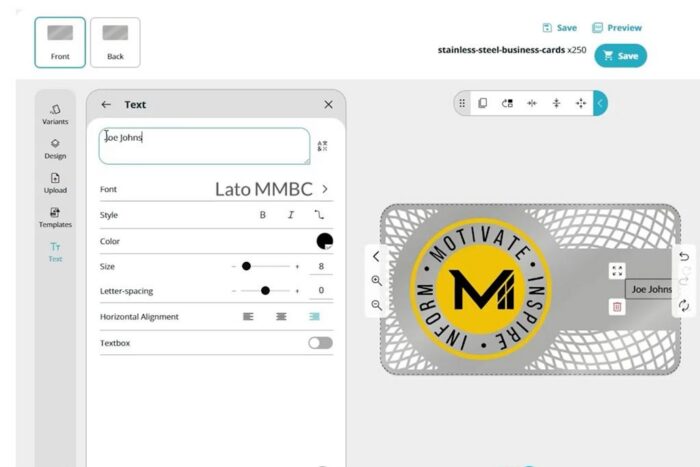
Now add the information you want on your card.
Use the Text tool to add details like:
- Name
- Title
- Company name
- Phone number
- Email address
- Website
- Social handle
- Tagline
Once the text is added, you can adjust the font, size, color, spacing, alignment, and placement.
This is where it helps to keep things clean.
A metal business card should be impressive, but it still needs to be useful. Someone should be able to quickly find your name and the best way to contact you.
Give the design room to breathe. Put the most important details first. If something doesn’t need to be there, leave it off.
That little bit of restraint usually makes the card feel more premium.
Step 8: Move, Resize, and Arrange Your Design Elements
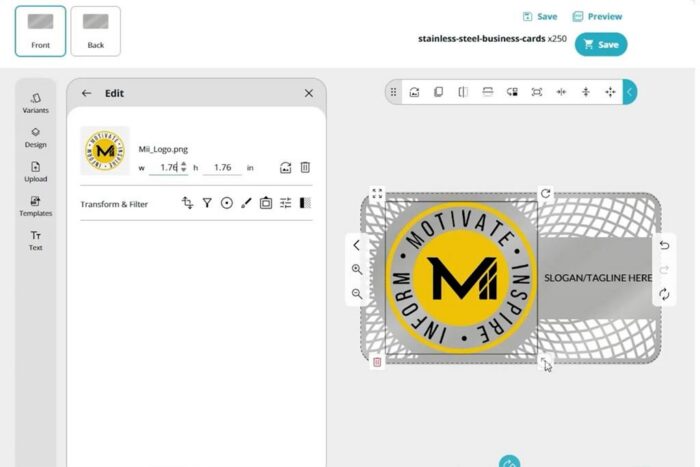
Once your logo and text are on the card, start arranging the layout.
You can click on each element to move it, resize it, rotate it, or adjust the placement. Use the front and back tabs to design both sides of the card.
A strong layout usually has a clear job for each side.
For example:
Front: Logo, brand mark, or visual impact
Back: Name, title, phone, email, website, QR code, or NFC details
This keeps the card from feeling crowded and gives every detail a purpose.
If your logo is the star, give it space.
If your contact details are the priority, make them easy to read.
If you’re using a QR code or NFC feature, place it where it feels natural and accessible.
The best custom cards feel balanced. Every detail knows where it belongs.
Step 9: Save and Preview Your Design
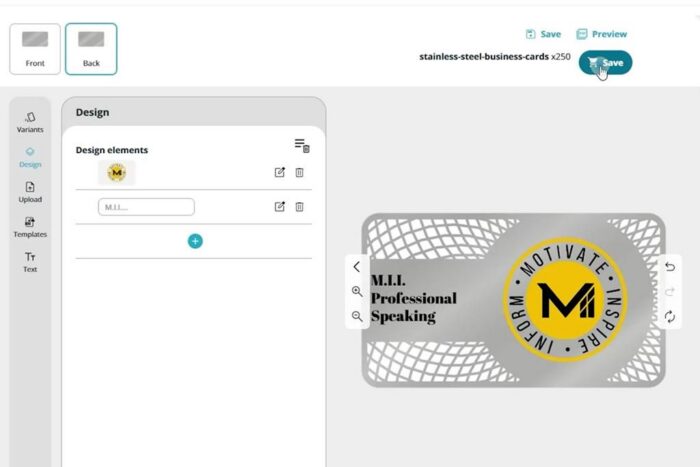
Once your design is in a good place, use the Preview option to review how it looks.
Check both sides of the card. Make sure your logo is positioned correctly, your text is readable, and your details are accurate.
Before moving forward, look closely at:
- Spelling
- Phone number
- Email address
- Website
- Logo placement
- Text alignment
- Front and back layout
- Color choices
- QR code or NFC details
- Any specialty options
Then click Save.
Saving your design helps keep everything together before your order moves forward.
Step 10: Customize Advanced Options
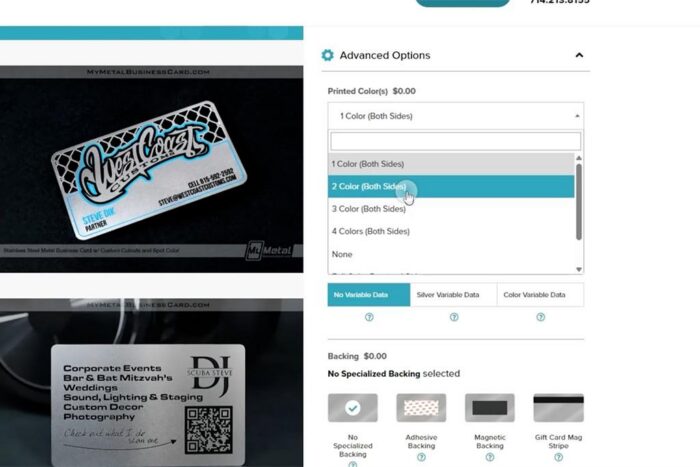
Before adding your card to the cart, review the available advanced options on the main product page.
All custom metal business cards come standard with one printed color. If your design uses additional printed colors, an alternate finish, special backing, variable data, or another upgraded option, make sure those options are selected on the product page before checking out.
The online designer helps you build and preview the look of your card. The product page is where you confirm the production options that should be included in your order.
Depending on the card product, advanced options may include:
- Additional printed colors
- Specialty finishes
- Specialized backing options
- Variable data
- Other specialty details
This is where you make sure the order matches the design.
For example, if you created a card with two printed colors in the designer, you’ll want to select the additional color option before adding the order to your cart. If you previewed a brushed finish, make sure a brushed finish is selected on the product page as well.
A great design deserves the right production details.
Step 11: If You’re Not Using the Online Designer, Choose Your Artwork Path
If you created your design using the online designer, you can save your design and continue with your order.
But if you’re not using the online designer, you’ll need to choose how you want to handle your artwork on the main product page.
You’ll see two options:
I Have Production-Ready Artwork
Choose this if you or your designer already created the files and they are ready for production. You can upload your vector artwork with your order.
Add Card Design Service
Choose this if you need help creating or refining the design. Our in-house design team can work with your logo, current card, sketch, notes, or general idea to prepare your card for production.
Design service is a smart choice if:
- You only have a logo
- You have an idea but no finished layout
- You want help with cutouts or etching
- You need help choosing color placement
- You want your current card redesigned in metal
- You’re not sure if your artwork is production-ready
You can also include artwork comments to tell us what you have in mind. Notes like “make this feel more luxury,” “use the logo as a cutout,” or “keep the back simple with contact info” are all helpful.
You bring the idea. We’ll help sharpen the details.
Step 12: Review the Artwork Guidelines
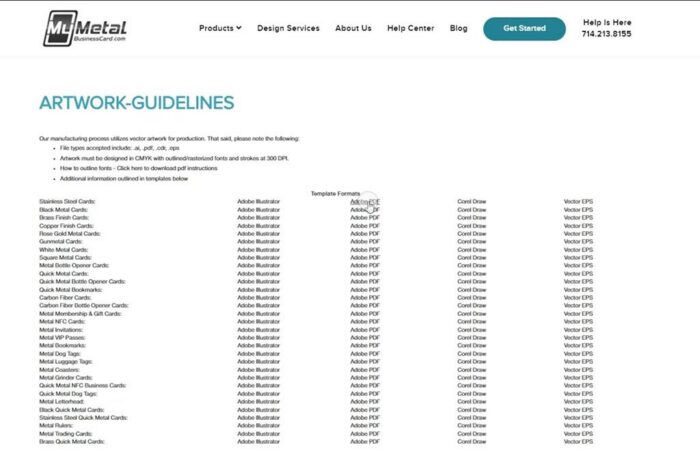
If you’re providing your own production-ready artwork, take a look at our Artwork Guidelines before uploading your files.
You can find the artwork guidelines in the Help Center section of the site.
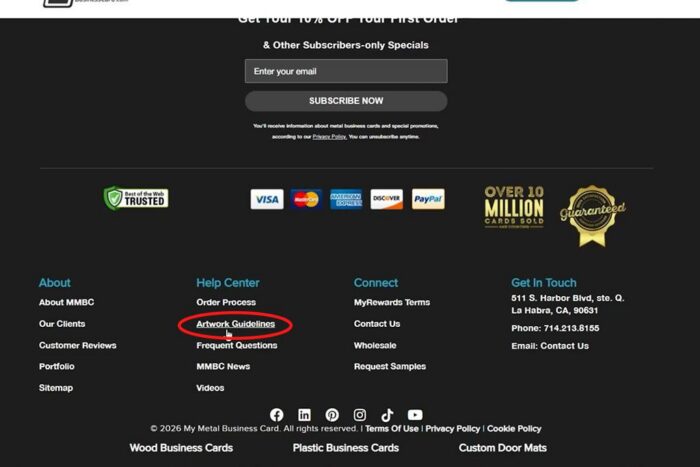
These guidelines explain how to set up files for metal card production, including accepted file formats, color setup, outlines, cut-through areas, etched areas, and other production details.
This is especially important for custom metal cards because the artwork needs to account for more than just print.
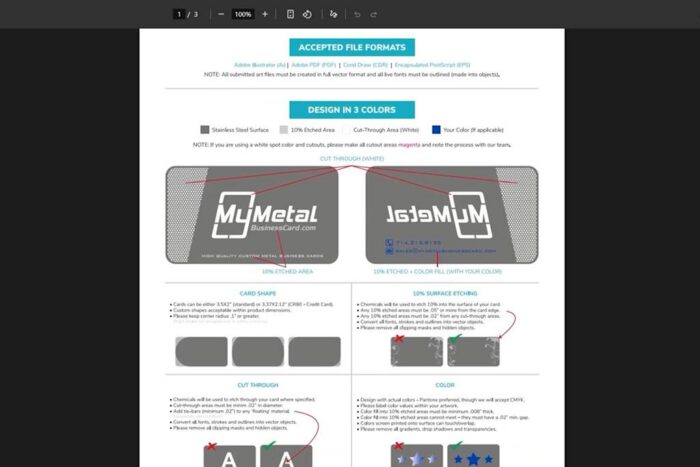
Metal cards may include:
- Surface etching
- Cut-through areas
- Spot color
- Custom shapes
- Content on both sides
If your designer is preparing the files, send them the guidelines so they can build the artwork correctly from the start.
And if that sounds like a lot, no problem. That’s exactly why our design service exists.
Step 13: Add to Cart and Submit Your Order
Once your design is saved, your product options are selected, and your artwork path is handled. Add the product to your cart.
Before checking out, take one last look at your order details.
- Make sure the quantity is correct.
- Make sure any added colors are selected.
- Make sure any upgraded finish is selected.
- Make sure any specialty backing or custom option is selected.
- Make sure your design has been saved or your artwork has been uploaded.
If you created your card using the online designer, we will use the artwork you created for production. You will not receive a separate digital proof unless our design team needs to confirm something with you before production.
If you uploaded production-ready artwork or added card design service, our team will review your files or design request and will prepare a digital proof which will be emailed to you for review and approval.
After your order is submitted, we’ll review everything and move your card toward production.
Nothing should feel rushed here.
This card represents you, and the details should feel right before it’s made.
Step 14: Get Ready for the Finished Card
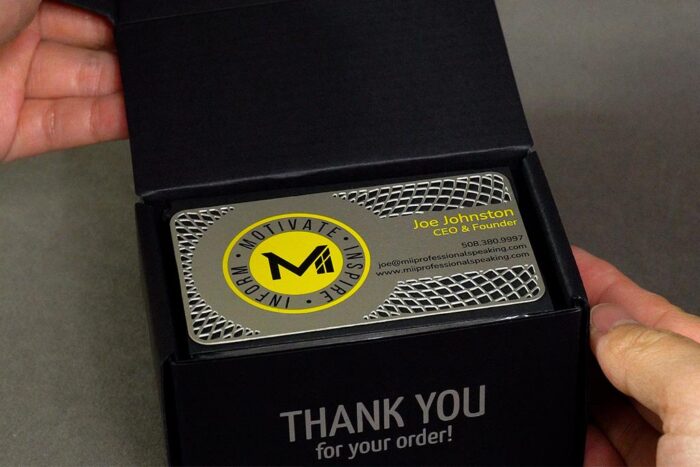
After approval, your custom metal business cards move into production.
This is where your finish, artwork, text, colors, cutouts, and custom details come together into the finished card.
And when that box opens, you’ll feel the difference.
The weight.
The shine.
The detail.
The little moment where you know this card is not getting tossed in a drawer.
That’s the point.
A great metal business card doesn’t just share your information.
It makes the introduction feel elevated.
Ready to Design Yours?
Use our online designer to choose your card style, upload your logo, add text, customize your layout, and preview your design.
Have production-ready vector artwork? Upload it with your order.
Need help? Add our card design service and work with our in-house team.
Just remember: your online design shows us the look you want, and the product page confirms the production options needed to make it happen.
Either way, we’ll help you create a custom metal business card that feels polished, personal, and impossible to ignore.